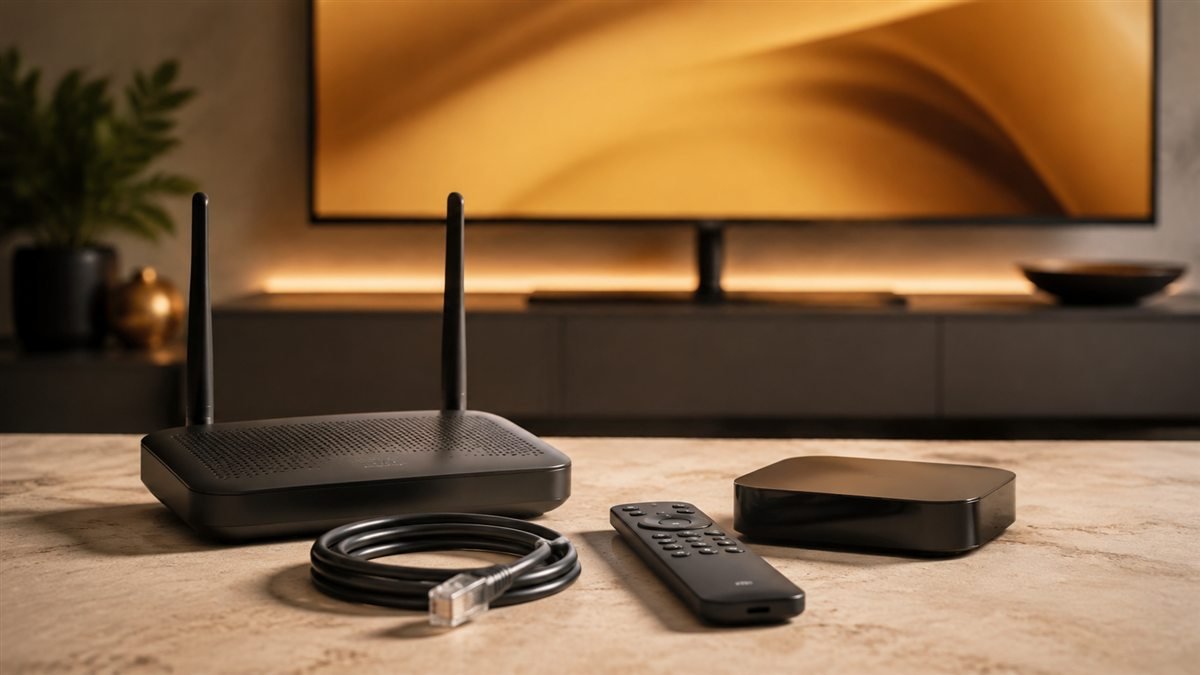
Buffering happens when a player does not receive video data quickly enough to continue playback. It can be temporary and may affect only one device, app or channel.
Start with your devices
- Test another streaming app on the same device.
- Move closer to the router or use Ethernet where possible.
- Restart the router and wait until the connection is fully restored.
- Pause other large downloads or streams in the household.
Check the device and player
Close and reopen the IPTV app, then restart the device. Install available device and player updates. If only one channel has a problem, test several others before assuming the whole service is affected.
When contacting support: include your device, player app, approximate time of the issue and whether every channel or only selected content is buffering.
Identify the pattern before changing settings
| What you notice | Check next |
|---|---|
| Only one channel pauses | Compare another channel and report the affected feed. |
| Every app struggles on the TV | Check the TV's network connection and device performance. |
| Only IPTV pauses on every device | Check account connections and ask support about the service. |
| Playback stops when another TV starts | Check the device streaming at a time allowance. |
Run a controlled connection comparison
Repeat the test on the same device, same channel and similar viewing period. Pause large household downloads, then try Ethernet if the device supports it. If Ethernet helps, focus on the Wi-Fi link rather than changing your subscription. Google's device troubleshooting guide includes router, cable and network checks. Avoid interpreting one fast speed-test result as proof that a long video stream will remain stable.
Understand bitrate and available bandwidth
A stream needs sustained throughput above its current bitrate, with room for other household activity. Higher resolution often needs more data, but the exact requirement depends on the feed and codec. Our internet speed guide explains how to estimate a practical household budget without treating one Mbps figure as a guarantee.
Check the player carefully
Restart the app, check for an update and compare a lower-quality feed if available. Change one setting at a time and note the result. Increasing a player's buffer may delay startup and cannot repair a feed that has stopped at the source. Clearing app data can remove credentials and favourites, so save your settings first. Do not buy extra software solely because a tutorial promises to eliminate all buffering.
Send a useful support report
Include channel name, date, local time and time zone, device model, player version, Wi-Fi or Ethernet, and which comparison tests succeeded. Share a redacted screenshot if there is an error. If playback never starts, use the black screen guide; if you cannot sign in, use the login guide.
Official reference
Google TV connection and playback troubleshooting. This reference covers the underlying device or format; it does not endorse Marinios IPTV.
Still need help?
Send your device model, player version, error text and the checks you tried. Remove passwords and full account links from screenshots.
Contact support