Fire TV Stick is a popular choice for IPTV because it connects directly to a television and supports a range of player apps. Before beginning, make sure the device has a stable internet connection and enough free storage for the player you plan to use.
What you need before setup
- An Amazon Fire TV Stick connected to your TV and Wi-Fi.
- Your IPTV account details after your request or subscription is confirmed.
- A compatible player app installed from the appropriate source for your device.
Fire Stick IPTV setup steps
- Open the Fire TV home screen and confirm that Wi-Fi is connected.
- Install your selected IPTV player app, then open it.
- Choose the login method supplied with your account, such as a playlist URL or portal details.
- Enter the details carefully, including any username, password or server address.
- Allow the app time to load its categories, then test a few channels.
Setup tip: If a login is rejected, check for spaces, capital letters and copied characters before trying again. Do not share account details publicly.
If Fire Stick IPTV is not working
Restart the player app first. If the problem continues, restart the Fire TV Stick and test your devices with another app. For more help, read our IPTV buffering guide or contact support with your Fire TV model and player name.
Confirm the Fire TV model before choosing a player
Write down your device model and software version from its settings. Player availability can differ between Fire TV models and regions, so a tutorial for another generation may not match your device. Ask support to confirm the app name and publisher before paying for a player. Installing an app does not activate an IPTV subscription.
Match the login screen to your account details
If the player asks for a server address, username and password, enter those three fields separately. A profile name is normally just a label you choose. If it asks for a playlist URL, paste the complete link instead. Our M3U and Xtream Codes comparison explains the difference. Avoid adding spaces with the on-screen keyboard or replacing the supplied address with the Marinios website URL.
Test before settling into a long session
- Load the channel list, select one channel and wait for playback.
- Check a second channel to separate a single-feed issue from an account problem.
- Check picture, sound and remote navigation, then close and reopen the app.
- Confirm the programme guide has the correct local time.
Keep the Fire TV connected to its recommended power adapter. If the menu itself becomes slow, restart the device and check for software updates. Amazon's support instructions below cover device-level playback checks; account errors should go through our IPTV login troubleshooting guide.
If the stream keeps stopping
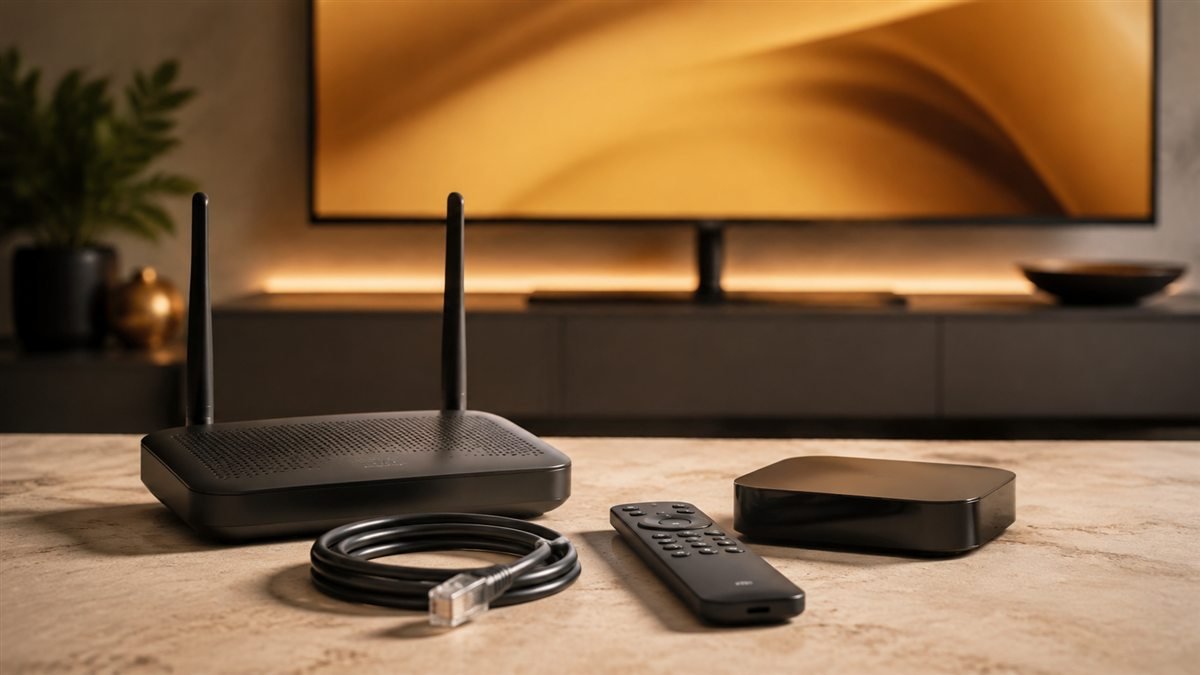
Test the same device closer to the router or over a compatible Ethernet connection. A fast phone speed test does not establish the connection quality behind your television. Follow the buffering diagnosis steps before changing several player settings at once. Save your login details before reinstalling an app, because reinstalling can remove local profiles and favourites.
Official reference
Amazon: Fire TV streaming troubleshooting. This reference covers the underlying device or format; it does not endorse Marinios IPTV.
Check your setup before choosing a plan
Confirm your device and priority channels with support, then test your own connection.
Explore trial optionsCompare plans