IPTV needs a connection that delivers video consistently. Your broadband package speed is only one part of that path: the stream also passes through your home network and player. There is no single Mbps number that guarantees smooth playback for every IPTV feed.
Start with the stream bitrate
Bitrate is the amount of video and audio data delivered each second. Resolution, frame rate, compression and the source all affect it. A 4K label alone does not tell you the required bandwidth. Ask about the actual feed and use your player's stream information if it provides it.
As an arithmetic example, two streams averaging 8 Mbps each require about 16 Mbps of sustained throughput before allowing for protocol overhead, bitrate variation or other activity. That is an illustration, not a measured Marinios requirement. A household download or video call needs additional capacity at the same time.
Estimate data usage
A stream averaging 8 megabits per second uses approximately 3.6 decimal gigabytes in one hour: divide 8 by 8 to convert to megabytes per second, then multiply by 3,600 seconds. Real usage varies with the stream and overhead. This calculation matters when using mobile data or a capped connection.
| Illustrative average bitrate | Approximate data per hour |
|---|---|
| 4 Mbps | 1.8 GB |
| 8 Mbps | 3.6 GB |
| 16 Mbps | 7.2 GB |
These are calculation examples, not resolution promises or service specifications.
Test at the television
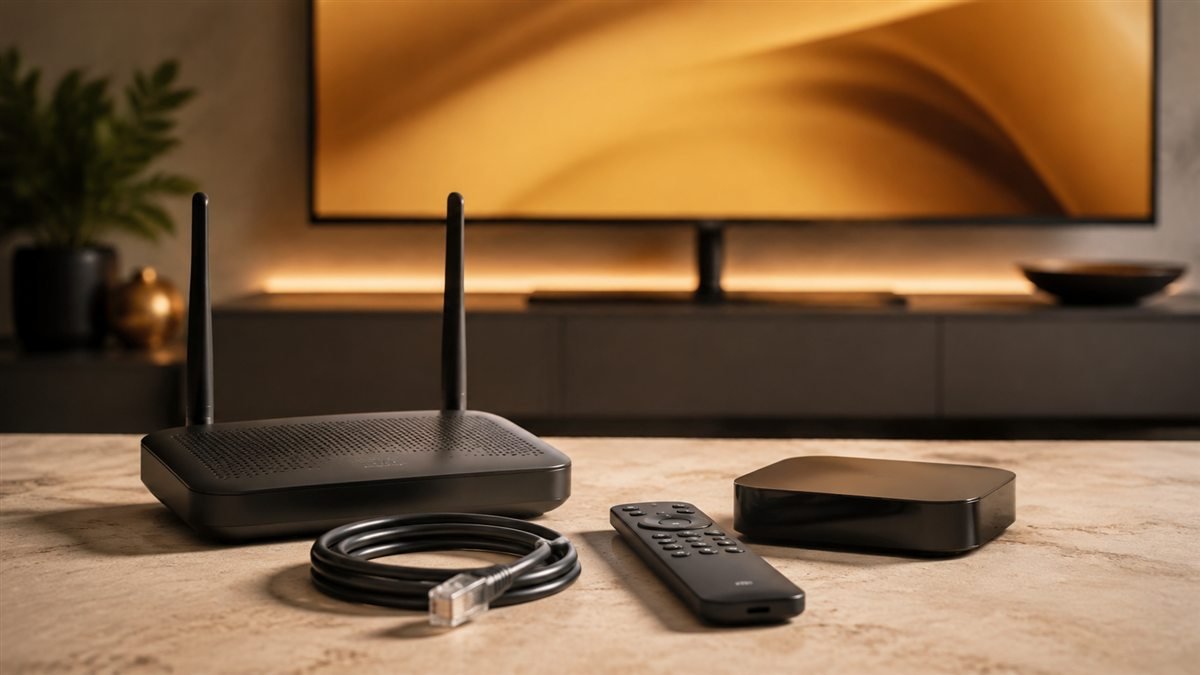
A phone beside the router may have a better wireless connection than a streaming stick behind the TV. Test on the actual playback device where possible. Compare a normal viewing period with household downloads paused, and repeat over Ethernet when your hardware supports it. Keep the device and channel the same so the comparison is meaningful.
Google's troubleshooting reference below includes network, router and wired-connection checks for Google TV. Use your own device manufacturer's instructions for exact menus. Moving a router into a clearer position may help, but results depend on walls, distance and interference.
Why a fast speed test can still buffer
A speed test samples a particular server and moment. Your video feed may take a different route, and brief drops can interrupt playback even if the average rate looks high. The player or source can also fail independently of the home connection. If only one channel struggles while others work, report the feed rather than assuming you need a new internet package.
Use the buffering diagnosis guide to separate one-channel, one-device and whole-household problems. Avoid changing Wi-Fi, decoding, buffer size and DNS together, because you will not know which change affected the result.
Budget for simultaneous viewing
Network capacity and account allowance are separate constraints. Enough bandwidth for two streams does not add a second service connection. Each standard plan includes one device streaming at a time; verify the current details on the pricing page.
Try before upgrading
Use the trial checklist on the device and network you already have. If Ethernet succeeds and Wi-Fi fails, investigate the home wireless link. If every device fails only on the same feed, ask support to check it. Buy different equipment or broadband only after the comparison identifies a constraint that the upgrade can address.
Official reference
Google TV connection and playback troubleshooting. This reference covers the underlying device or format; it does not endorse Marinios IPTV.
Check your setup before choosing a plan
Confirm your device and priority channels with support, then test your own connection.
Explore trial optionsCompare plans